Quick Start Guide
What age group is Apples & Bananas designed for?
The app is designed for young learners, typically aged 2-8 years, helping them develop essential early learning skills.
What kind of activities are available in the app?
Our app offers a variety of activities covering English, Math, writing, and classroom learning, alongside creative options like art, music, and storytime.
Kids can explore science, geography, animals, and technology, while also developing critical thinking, fine motor skills, and communication.
Suitable for ages 2-8, the app includes videos, audiobooks, games, and even sleep lullabies to make learning fun and engaging.
How do I begin my adventure?
To begin your child's learning journey, simply download the app, create a profile, and start exploring!
The app offers a range of interactive activities, including educational games, puzzles, rhymes, and songs.
For the best experience, subscribe to unlock all levels and premium content.
How can I sign in and out of the Apples & Bananas app?
Siging in:
Open the app (download from the App Store or Google Play Store).
On the subscription page, tap Sign up.
Enter the email ID you used to register or subscribe and tap "sign in."
If you've forgotten your password, click here to request a password reset. We'll send you an email with easy steps to reset it.
Signing Out:
- Navigate to the Parent's Area in the app.
- Go to Account Details.
- Tap the Log out option to securely sign out of your account.
Start Your Free Trial with Apples & Bananas!
At Apples & Bananas, we believe every child deserves the chance to learn and grow through play at an early age.
That's why we offer a 3-day free trial to get started on their exciting learning journey!
Enjoy unlimited access to games, activities, and learning content tailored to your child's progress
After the free trial, you'll be charged $71.88/year to unlock everything the app has to offer.
You can cancel anytime, hassle-free!
Let your child explore the fun and engaging world of Apples & Bananas—completely free for 3 days on trial!
Where can I view my subscription details?
You can check everything about your subscription in the Account Details section, including validity, account ID, and the number of child profiles.
You can also manage or restore your subscription here.

How can I invite another parent to join the app?
It's easy! Go to the Parent Tab and click on Invite Parent. You'll get a unique invite code that you can share with another parent.
Once they use it, they'll be able to join the app!
How can I track my child's progress?
You can monitor your child's progress in the Progress Report, accessible when clicked on the profile tab on the top left of the Apples & Bananas app.
The Progress Report provides an overview of your child's achievements and the skills they've developed.
You'll also see the topics they've practiced, including vocabulary development, problem-solving activities, and other key skills they've gained
through engaging with our content.
I've paid, but I still can't access my Apples & Bananas account.
We're sorry you're having trouble accessing your subscription with Apples & Bananas!
Try these steps to resolve the issue:
Delete the Apples & Bananas App from your device.
Reinstall the app from your preferred app store.
On the subscription page, tap "sign in" and enter the email address you used to subscribe.
If needed, you can request a password reset.
Still can't access your subscription?
Some users may subscribe using a different email address or an Apple Hidden ID. Please ensure you're logging in with the exact email address used during the subscription process.
If you're unsure which email address you used to subscribe to, please contact us on our email id and attach a copy of your subscription receipt. Our team will assist you in resolving the issue as quickly as possible.
Is the app ad-free and safe for kids?
Yes! Apples & Bananas is designed exclusively for kids, ensuring a completely ad-free experience. We prioritize child safety by providing:
Kid-friendly content: All activities are age-appropriate and designed for early learners.
Secure learning environment: No external links or in-app purchases that lead kids outside the app.
No third-party ads: The app is designed to be a safe, distraction-free space for children to learn and play.
How To Use
How do I control the game levels like a pro?
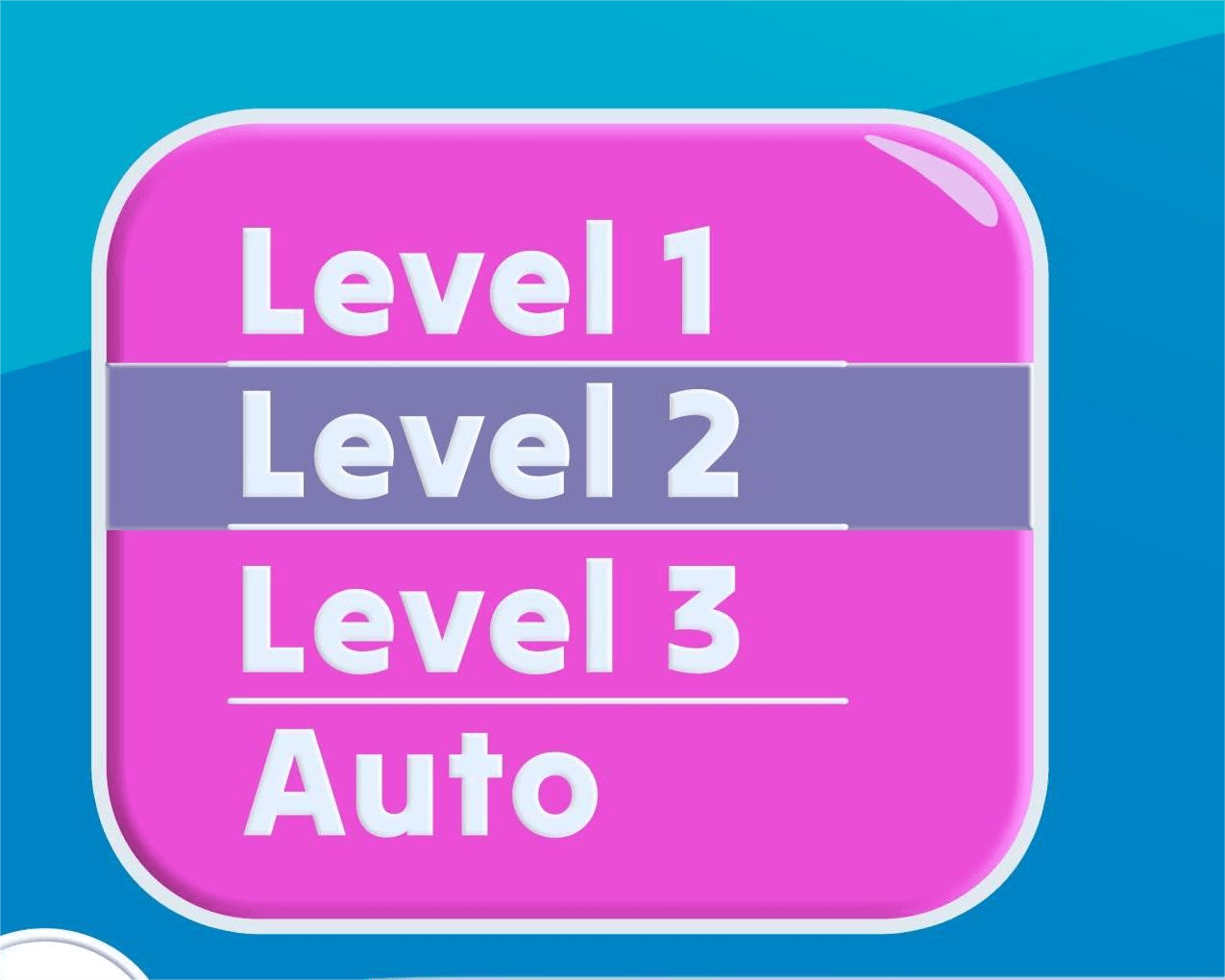
Switching game levels is as simple as tapping a button! On the homepage, you’ll find an option to select from three levels of gameplay,
ensuring the experience is tailored to your preferences.
For added convenience, there’s an “Auto” mode that takes the guesswork out of choosing a level.
In this mode, the app selects the most suitable level for you based on your progress.
Can I have stories on repeat?
Absolutely! The audiobook section is designed for endless storytelling adventures.
You’ll find a library of captivating audio stories, songs, or lessons that can be played on a continuous loop.
Whether it’s bedtime stories, soothing tunes, or learning audios, this feature ensures you don’t have to keep pressing play.
It’s perfect for long listening sessions and keeping kids entertained or relaxed.
What happens when I click on the gift icon?
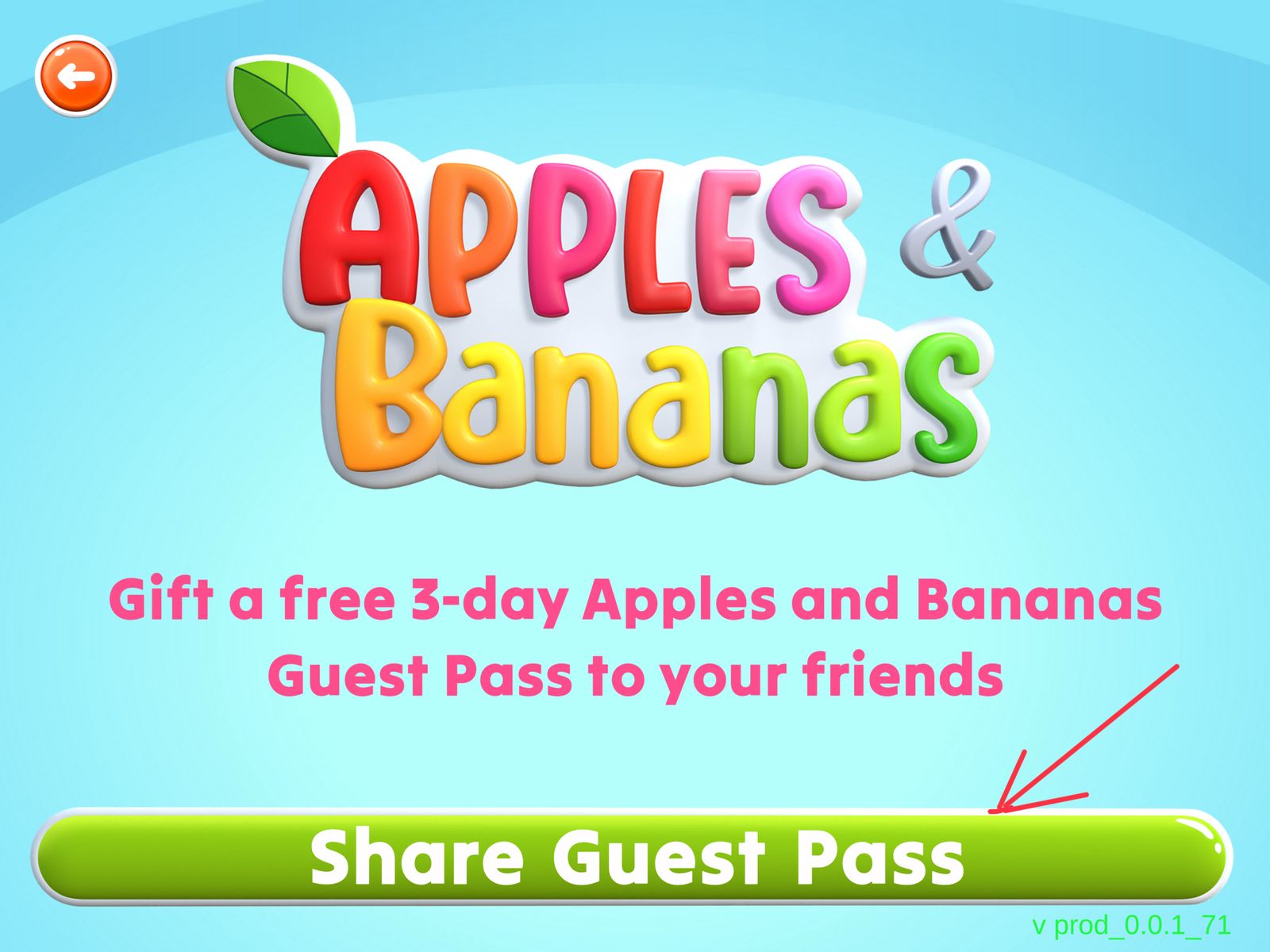
Want to spread some joy and introduce someone to the app? The gift icon is your key to making someone’s day!
By clicking on the gift icon, you can send a free trial of the app to your friends or family.
It’s a wonderful way to let them explore the exciting features of the app while creating shared moments of fun and learning.
What’s the secret to mastering the game?
The tutorial is your ultimate guide! It teaches you all the tips and tricks to excel in the gameplay.
Already a pro? You can turn off the tutorial from the settings menu. But don’t worry—if you ever need a refresher or help, you can toggle it back on anytime.
The choice is yours!

Can I play in silence if I want to?
Absolutely! If you’d rather play without background music, we’ve got you covered.
Head to the right hamburger menu, where you can switch the music off with just a tap.
Whether you prefer silence or want to focus on the sounds of gameplay, the control is in your hands.
What magical options are hidden in the settings?
The right hamburger menu is packed with all the controls you need to customize your experience! Here’s what you’ll find:
Notifications On/Off: Turn notifications off.
Mic Access On/Off: Control your microphone access easily.
Tutorial On/Off: Feeling confident? Switch off the tutorial—or turn it back on if you need help!
Rate Now: Love the app? Let us know by rating us!
Contact Us: Have a question or need assistance? We’re here to help—just reach out.
What can I find in the Parent Area?
The Parent Area is where you manage your account and your child’s experience on the app. It has two main sections:
Parent Tab: Manage your details, invite another parent, and edit your information.
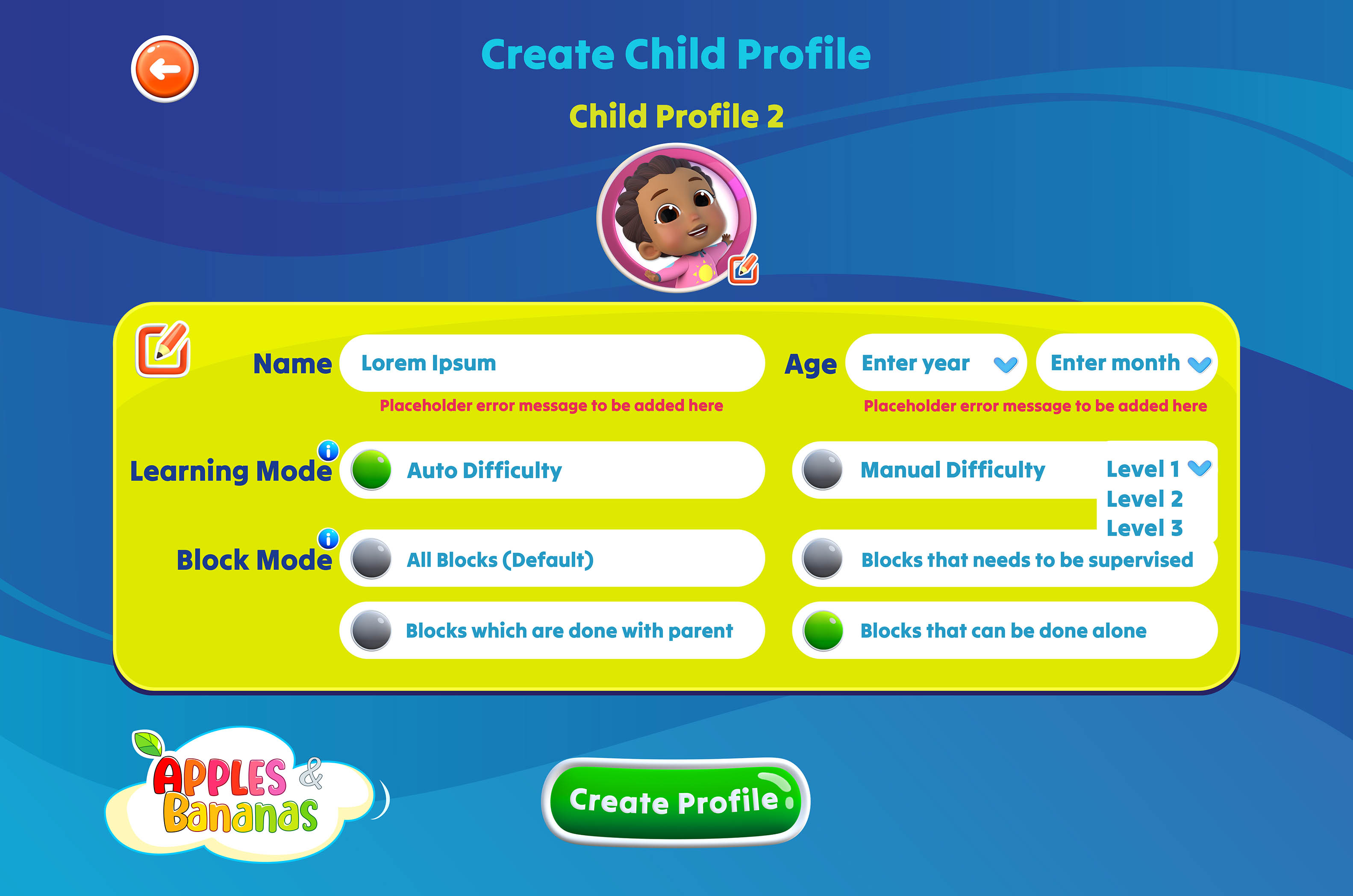
Child Tab: Create up to 4 child profiles, set screen time limits, and assign specific activities for your kids.

How do I manage my details in the Parent Tab?
In the Parent Tab, you can:
View your name and email ID used for login.
Invite another parent by generating and sharing an invite code with just one click.
Edit your information (like name or email) by clicking the edit icon. You can save or discard changes easily.
What makes the Child Tab so helpful?
The Child Tab is designed to make your child’s learning journey personalized and fun! Here’s what you can do:
Add Profiles: Create up to 4 child profiles.
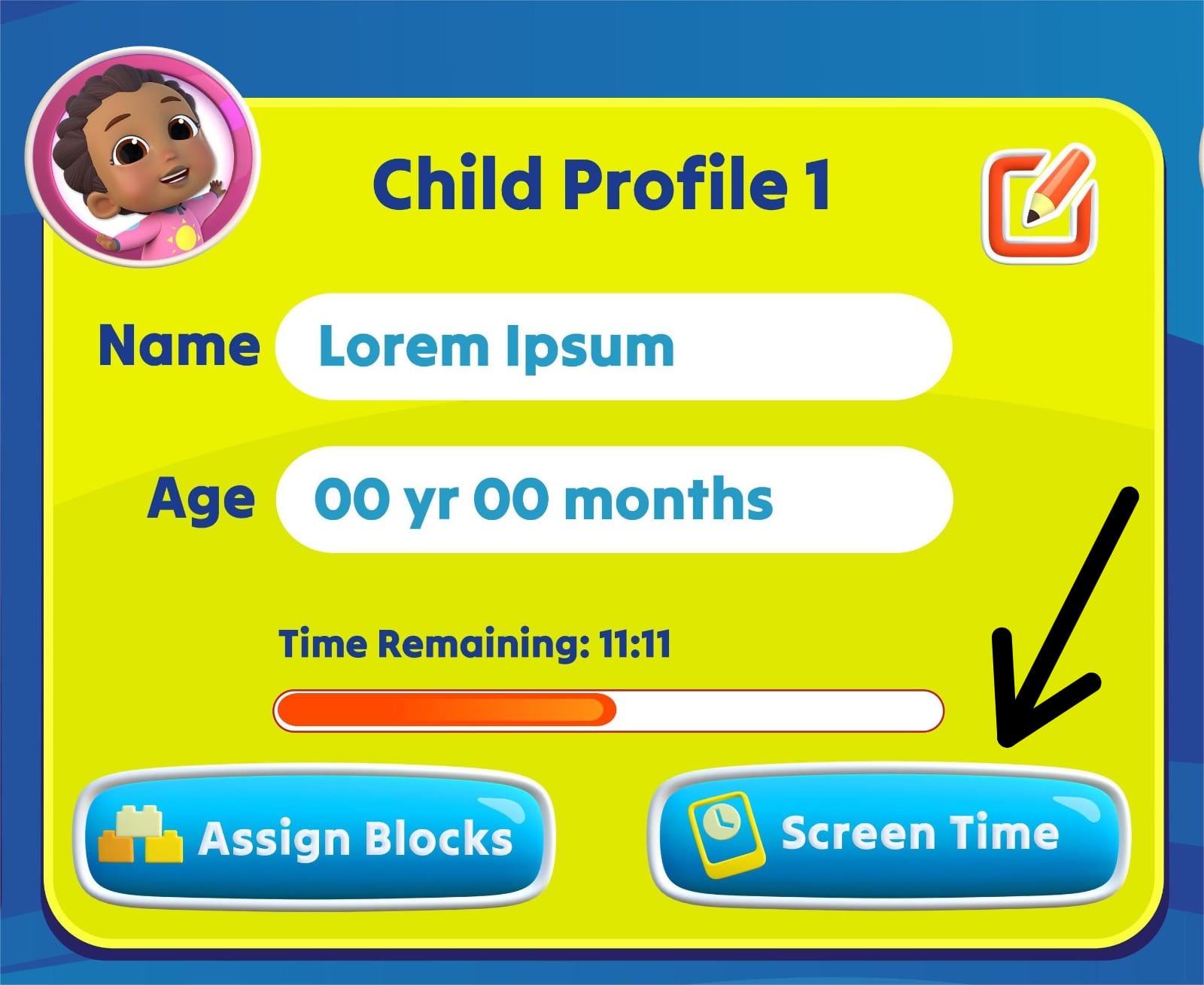
Screen Time: Set daily time limits or specific schedules for your child to play on chosen days.
Assign Blocks:Choose specific learning categories for your child to explore on selected dates.
Edit Profiles:Update your child’s name, age, block preferences, and learning settings anytime.
What happens when I click on my profile?
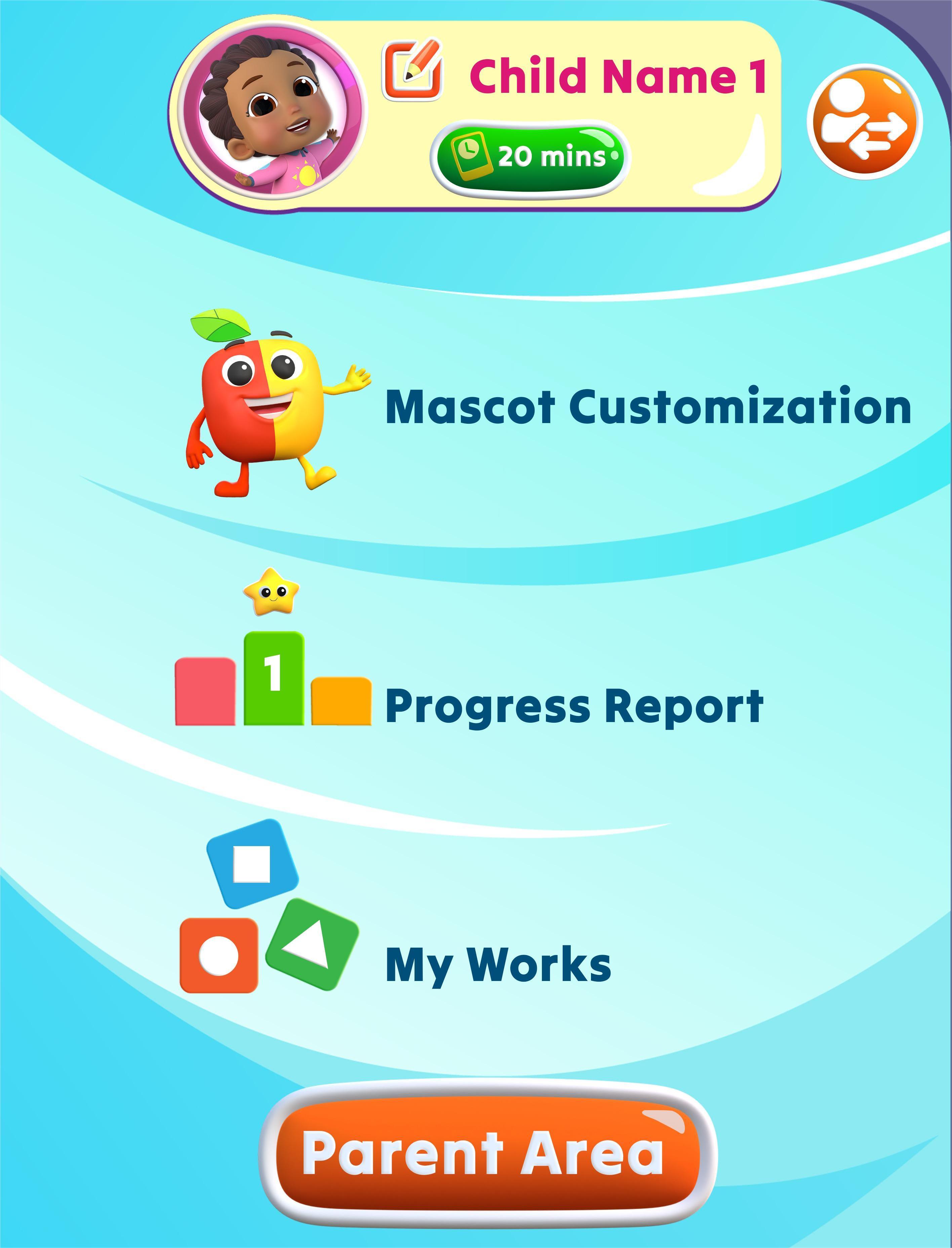
Clicking on your profile opens up a world of options to explore and manage your experience. You’ll find six exciting features:
- Mascot Customization: Choose and personalize your mascot to make it truly your own.
- Shop:It is a special section in the app where you can purchase fun elements using the in-app currency earned by playing and completing blocks.
- My world:Create your own dream world
- Progress Report: Track your learning journey with detailed insights.
- My Work: All the artworks, certificates, stickers earned, favorite, printable
- Parent Area: Manage your child's account on the app
What are Block Mode and Learning Mode, and how do they work?
Block Mode: Customize how your child interacts with the app
- All Blocks: Default access to all activities.
- Blocks That Need Supervision: Activities requiring parental guidance.
- Blocks Done With a Parent: Tasks to complete together.
- Blocks That Can Be Done Alone: Independent activities for your child.
Learning Mode: Adjust the difficulty level for your child’s learning experience:
Auto Difficulty: The app automatically adjusts the challenge level.
Manual Difficulty: You decide the difficulty level manually.
Both modes can also be adjusted from the homepage!
How can I set screen time for my child?
You can easily manage your child’s screen time in the Child Tab. Simply assign specific playtimes, choosing the days, dates, and duration they can use the app.
It’s a great way to ensure balance and routine!
Fun Features
What is the Learning Steps?
The Learning steps is the heart of Apples & Bananas! It offers a wide variety of activities across different categories, including:
- Numbers & Counting– Learn basic math through interactive play.
- Colors & Shapes– Develop early recognition skills.
- Animals & Vehicles – Discover fun facts about animals and different modes of transportation.
- Songs & Stories – Enjoy engaging audio-visual content for immersive learning.
- Tracing & Painting – Build motor skills with drawing and coloring activities.
- Games & Puzzles – Solve fun challenges that enhance logical thinking.
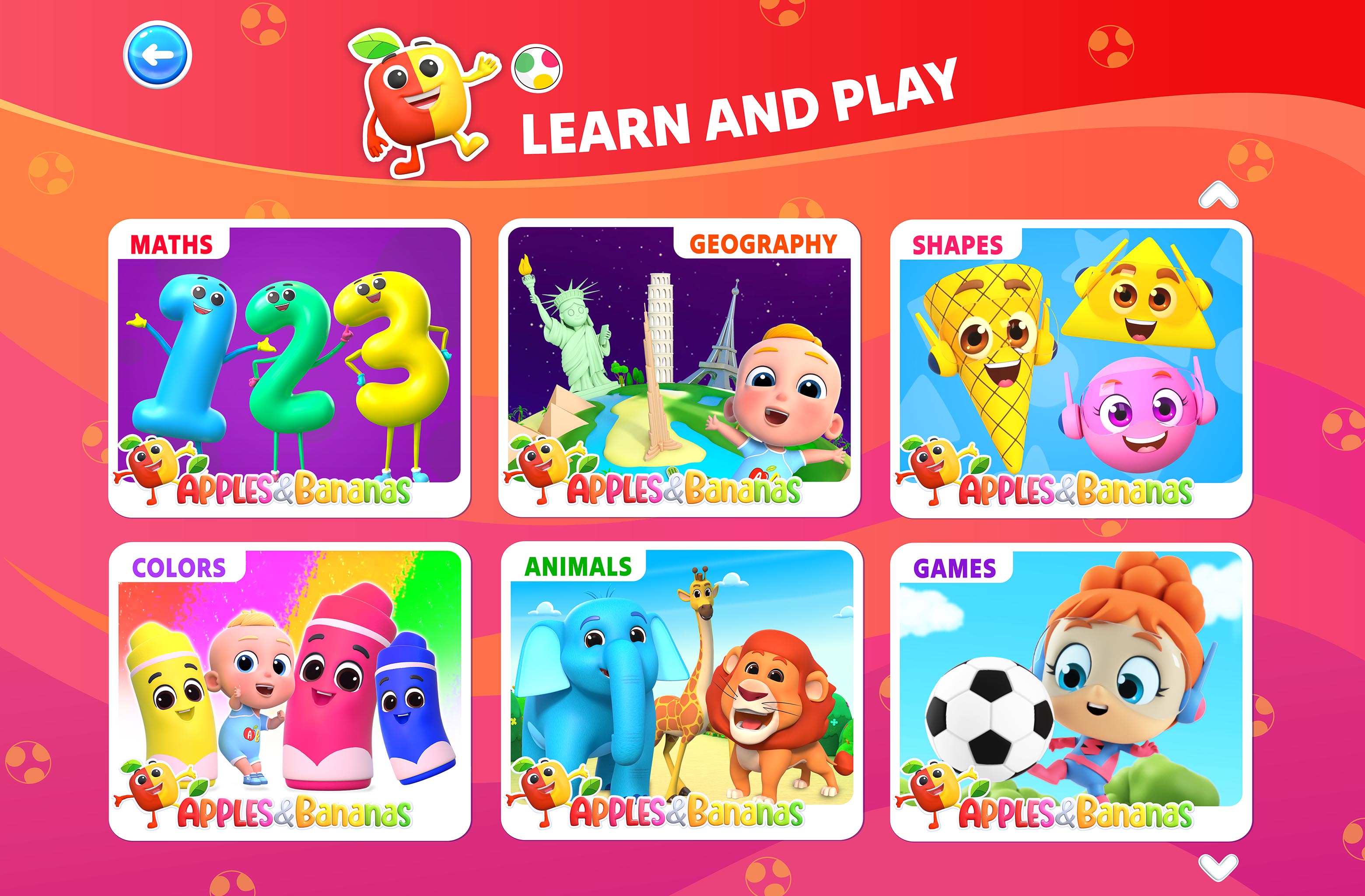
What is Play and Learn?
Play and Learn is the core of the Apples & Bananas experience, combining educational learning with fun activities to keep children engaged.
The app features a mix of interactive lessons, puzzles, rhymes, and mini-games that promote cognitive, motor, and language skills.
What makes My World a magical place?
My world is your ultimate playground! It’s a place where fun meets creativity.
By playing games, you can collect stars that act as your in-game currency.
These stars can be used to purchase unique elements from the shop, like decorations, characters, or items.
The best part? You get to use these elements to customize and build six different lands, each with its own theme and charm.
Let your imagination take flight as you create your dream world

What’s so special about the video section?
Think of the video section as your very own mini-theater! Here, you’ll find a collection of fun and educational videos that play continuously in a loop.
There’s no need to press play repeatedly—just start the loop and enjoy the show. Whether you’re looking for entertainment or learning, the video section ensures
non-stop engagement for kids.
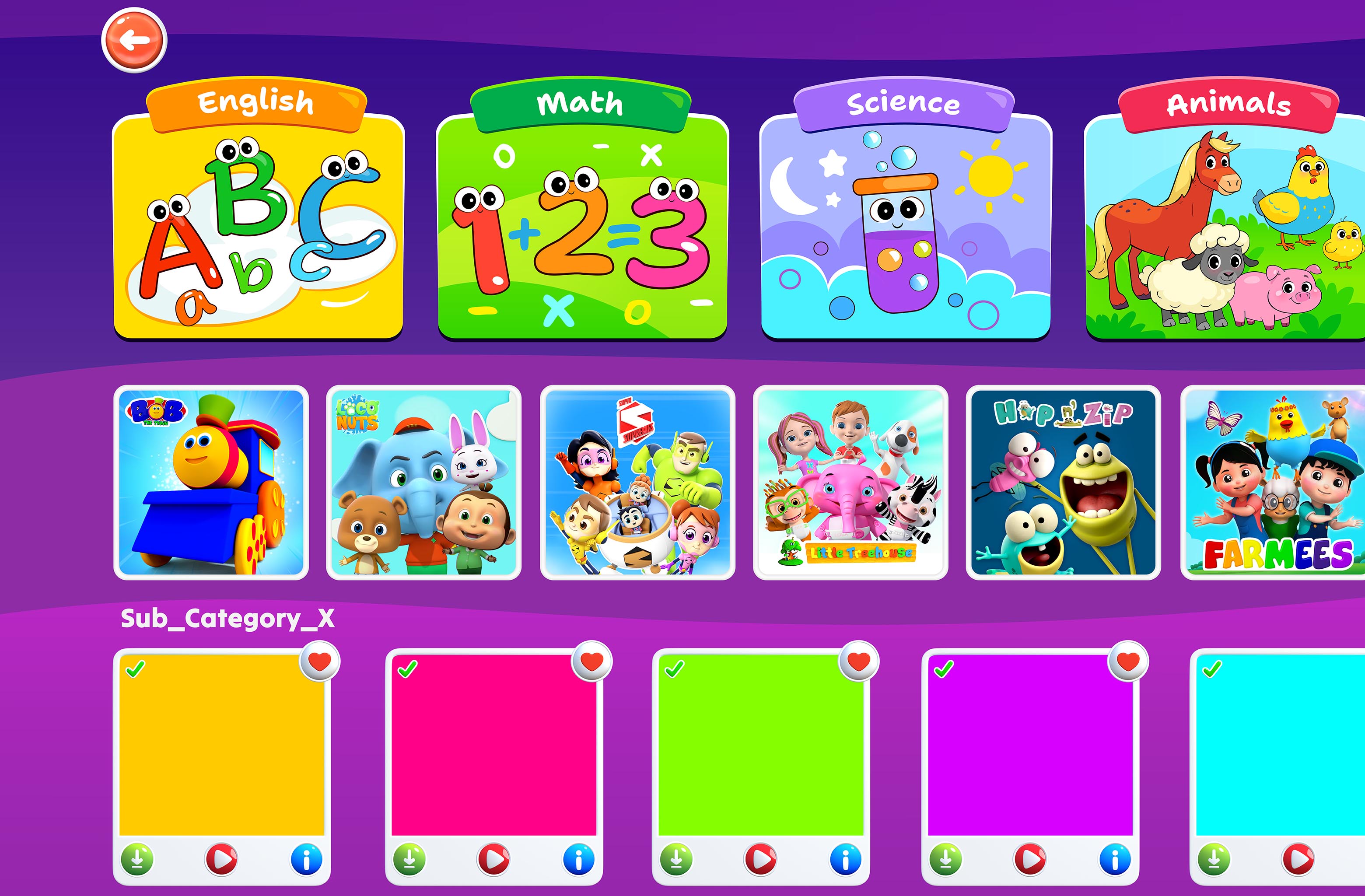
Can I watch videos when I’m offline?
Yes, you can! With the download feature, you can download your favorite videos directly to your device.
Once downloaded, they’re available anytime, anywhere—even without an internet connection. Perfect for road trips or when Wi-Fi is nowhere to be found!
How can I make the voiceover sound just right for me?
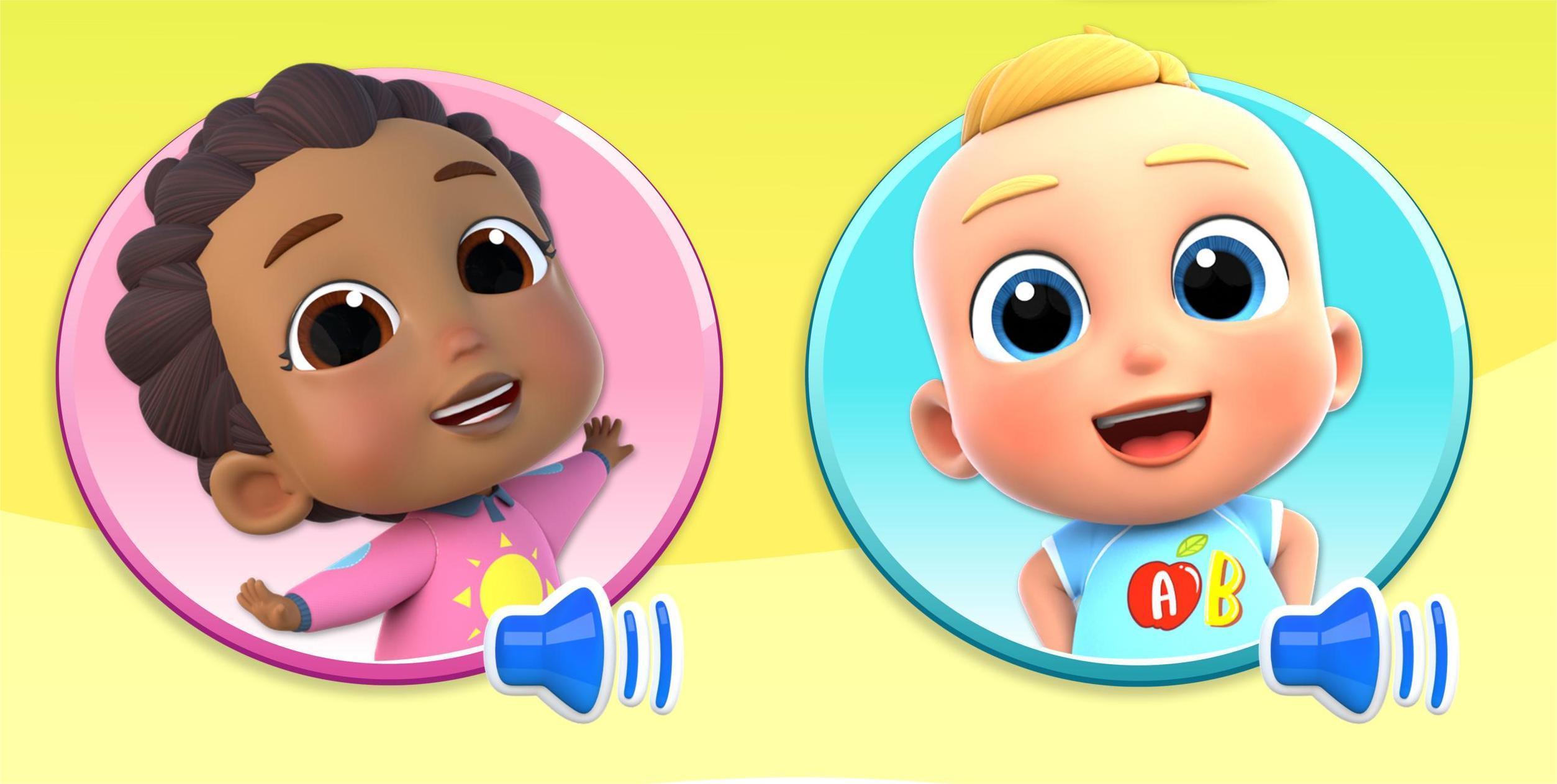
Customizing the voiceover is easy! You can choose between a male or female voice, depending on your preference.
Don’t want a voiceover at all? Simply head to the right hamburger menu and turn it off. It’s your app, your way!
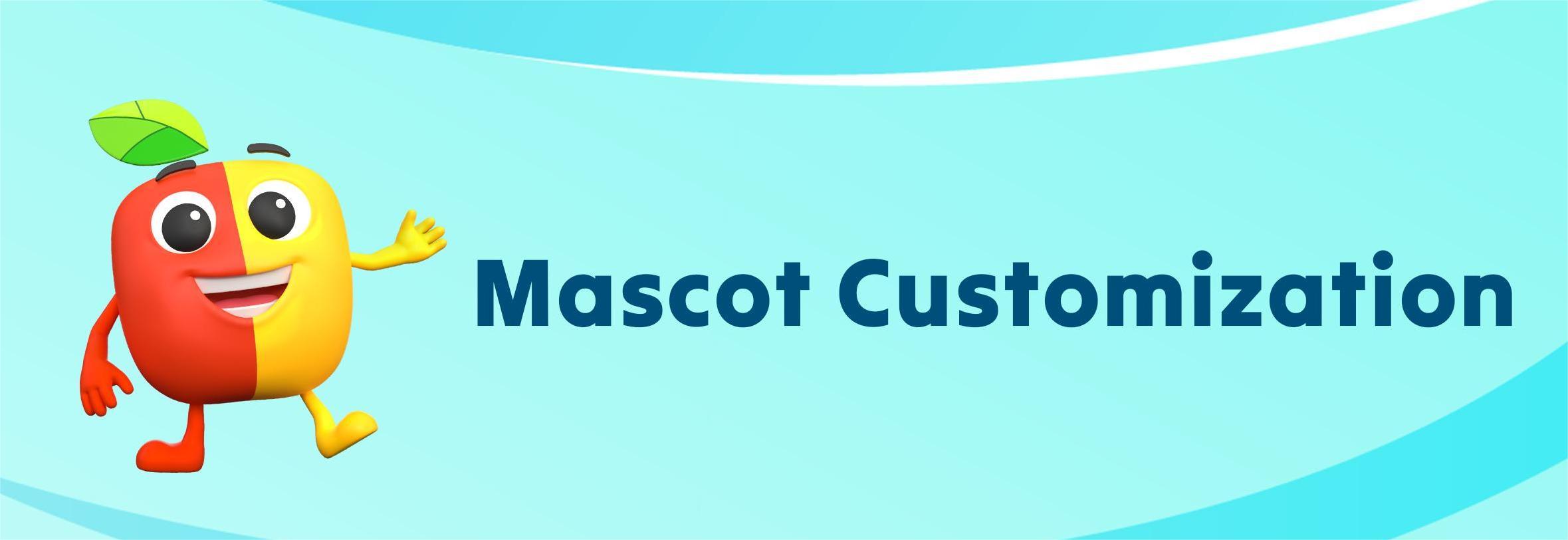
What is Mascot Customization?
Mascot Customization lets you select a mascot and customize its appearance. You can add your personal touch to make it unique and special.
How can I bring my profile to life with a fun avatar?
Want to give your profile a unique personality? Simply click on your profile or the edit icon next to it, and explore a world of options! Choose from:
- Animals
- Bugs
- Characters
- Colors
- Food
- Planets
- Shapes
- Transport
Pick your favorite and make your profile stand out!
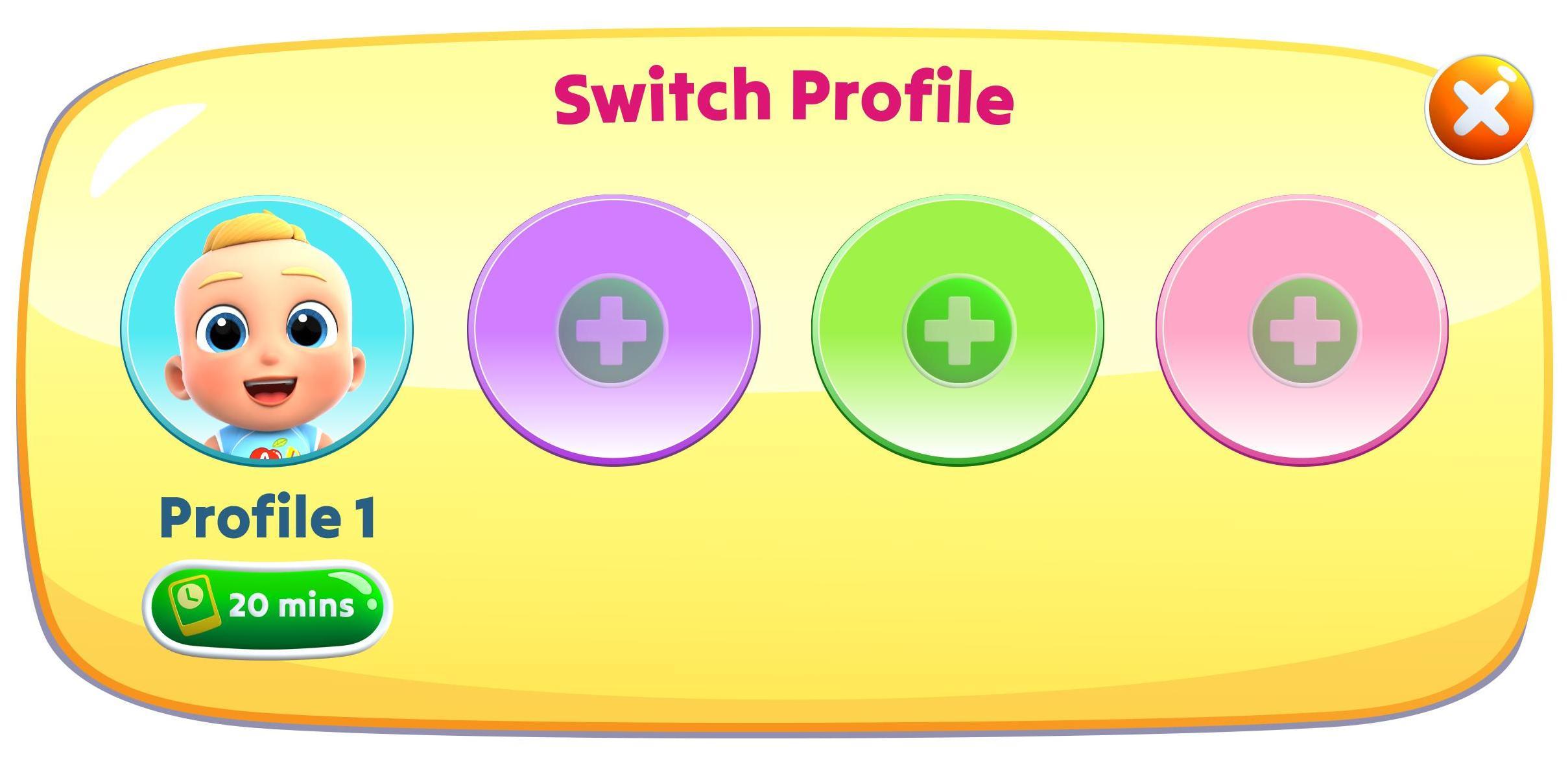
Can I easily switch between child profiles?
Absolutely! With just a tap beside My Profile, you can seamlessly switch between child profiles.
It’s quick, easy, and ensures each child has their own tailored experience.
What does the Progress Monitor do?
The Progress Monitor provides a detailed overview of your performance. Here’s what you’ll find:
Blocks Completed: See how many blogs you’ve completed.
Top Categories: Discover which categories you’re excelling in.
Top Skills: Find out your strongest skills.
Full Report Option: Access in-depth data, including:
- Top 3 Popular Categories
- Performance of Individual Categories (e.g., critical thinking, fine motor skills, life skills, math, science, English, and more).
- Skills Report: Focused insights on critical thinking, recognizing skills, fine motor skills, spatial awareness, life skills, and communication.
Date Range Options: View your progress over the last 7, 28, 90, 180, or 360 days—or select a custom date range for even more flexibility.
Can I view detailed reports for my progress?
Yes! The Progress Monitor includes a “View Full Report” option where you can dive into:
The top 3 popular categories.
Performance in individual categories like critical thinking, wellbeing, art, science, and more.
A comprehensive skills report to track your strengths and improvements.
How can I track my progress over time?
With the Progress Monitor, you can view your progress over different time frames—like the last 7 days, 28 days, 90 days, or even an entire year.
You can also select a custom date range to get a more specific view of your learning journey.
What’s inside the “My Work” tab, and why is it awesome?
The My Work tab is your personal showcase of creativity and achievements. Here’s what makes it special:
- Artwork: Relive your creativity by viewing all the masterpieces you’ve created in the painting blocks.
- Certificates: Celebrate your progress with all the certificates you’ve earned—it’s your trophy cabinet!
- Completion Stickers: Collect fun stickers for completing tasks and store them here as keepsakes.
- Favorites: Keep your favorite blocks close—mark them with the heart icon, and they’ll live here.
- Printable Tabs: Access printable content like alphabets, numbers, tracing sheets, and
objects—perfect for offline learning activities with your little ones.
Where do my creative masterpieces go?
Every piece of artwork you create in the painting blocks is saved in the Artwork section under “My Work.”
Think of it as your personal art gallery that you can revisit anytime!
How do I find all my certificates?
All your hard-earned certificates are stored neatly in the Certificates section under “My Work.”
It’s the perfect place to keep track of your achievements and show them off!
What are “Completion Stickers,” and how do they work?
Completion Stickers are like little badges of honor you earn for finishing tasks.
You’ll find all your collected stickers in the Completion Stickers section under “My Work.” They’re fun and rewarding!
What are favorites, and how do I save them?
Got a block you love? Tap the heart icon on its thumbnail to mark it as a favorite.
All your favorites will be saved in the Favorites section under “My Work,” so you can access them easily anytime.
Where can I find my saved favorite blocks?
You can find all your favorite blocks in the “Favorites” section under the “My Work” menu.
Can I remove a block from my favorites?
Yes! Simply tap the heart icon again on any block that is already in your favorites, and it will be removed.
Do my favorite blocks sync across different devices?
If you are logged into your account, your favorites will be saved and accessible across all devices.
If you are using the app without logging in, your favorites will only be stored on the current device.
How many blocks can I add to my favorites?
There is no limit! You can add as many blocks as you like to your favorites for quick access.
Will my favorites be lost if I reinstall the app?
If you are logged into your account, your favorites will be saved.
However, if you are using the app without an account, reinstalling the app may remove your saved favorites.
What can I do in the Account Details section?
The Account Details section helps you manage everything about your subscription and app access:
- Account ID: View your unique account number.
- Validity: Check your subscription period.
- Number of Child Profiles: See how many child profiles you’ve created.
- Subscription Management: Upgrade, renew, or restore your subscription.
- Change Password: Update your account password for security.
- Log Out: Safely exit your account.
Can I customize each child’s learning experience?
Of course! In the Child Tab, you can:
- Assign specific learning categories for your child on particular dates.
- Set screen time limits to balance their app usage.
- Adjust Block Mode to choose what type of activities your child can engage with (independent, supervised, etc.).
- Change Learning Mode to either auto or manual difficulty for tailored learning.